How to Add a Rim to the Inventory: A Step-by-Step Guide!
Follow these simple steps to add a rim to your inventory list. This guide will help you fill out each field correctly, ensuring all necessary information is included for easy tracking and sales management.
To add a rim to the inventory, navigate to the Rim Record click the “Add New” and the Add New Rims Form will open
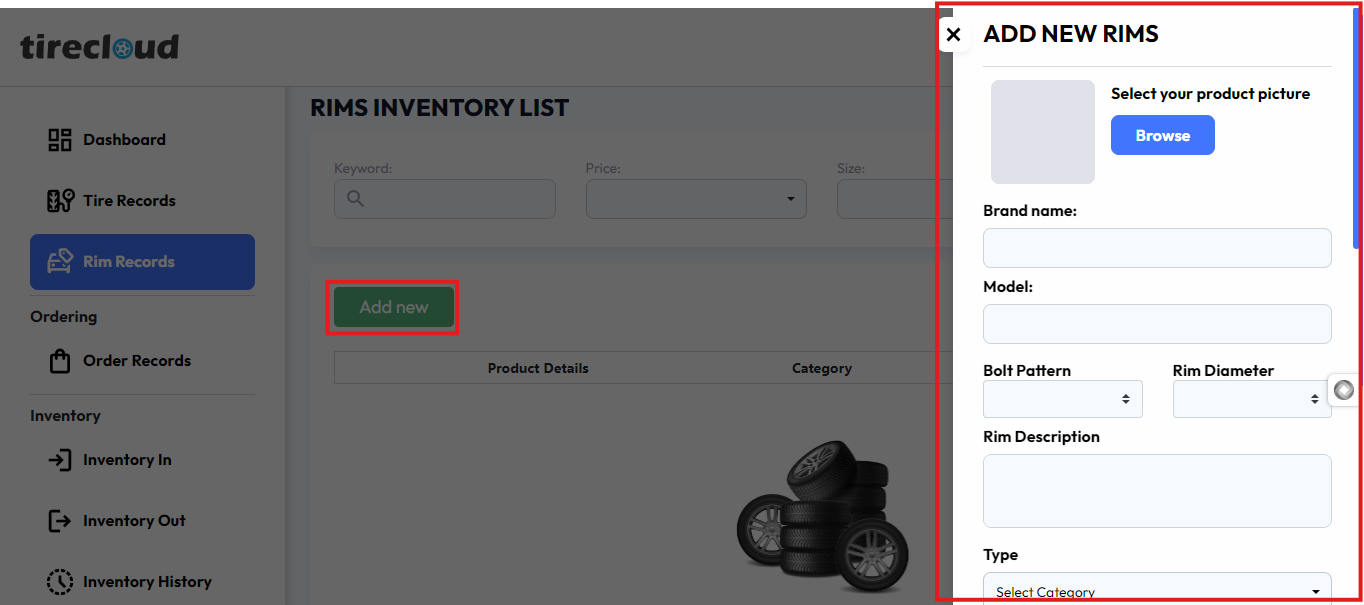
Select Your Product Picture
Upload a clear image of the rim you want to add. This will help users identify the product visually.
Brand Name
Enter the manufacturer or brand of the rim (e.g., Michelin, Goodyear). This helps customers recognize well-known brands.
Model
Input the specific model name of the rim. This ensures detailed product identification (e.g., 'Sport Pro X').
Bolt Pattern
Specify the bolt pattern of the rim (e.g., 5x114.3). This is crucial for vehicle compatibility.
Rim Diameter
Enter the diameter of the rim in inches (e.g., 18"). This helps customers choose the correct size for their tires.
Rim Description
Write a brief description of the rim’s features or design (e.g., "Alloy wheel with a polished finish"). Include any key details customers need to know
Depending on the subscription A.I. can automatically generate a description of your rim product
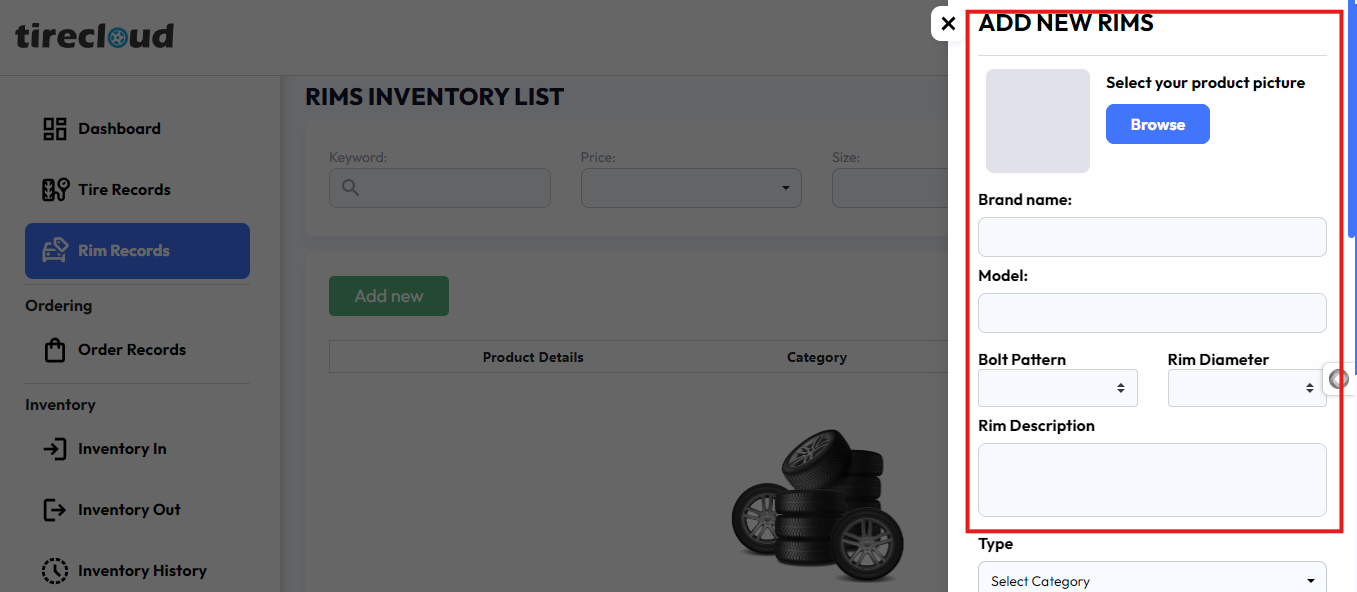
Type
Select the type of rim (e.g., Alloy, Steel). This distinguishes the material or category of the product.
Location Field
Enter where the rim is stored (e.g., Warehouse A, Section 3). This helps you keep track of stock locations.
SKU Number
Input the Stock Keeping Unit (SKU), a unique code that helps in tracking and managing the rim (e.g., RIM-2024-18A).
Rim Width
Specify the width of the rim in inches (e.g., 8"). This is key for compatibility with different tire sizes.
Offset
Enter the rim’s offset, which defines how far the mounting surface is from the center of the rim (e.g., +35mm).
Center Bore
Specify the diameter of the rim’s center bore (e.g., 66.1mm). This affects how the rim fits on the vehicle hub.
Condition
Select whether the rim is New or used. This provides transparency about the product's quality.
Condition Remarks
Add any specific remarks about the condition (e.g., "Minor scratches," "Like new"). This helps set customer expectations.
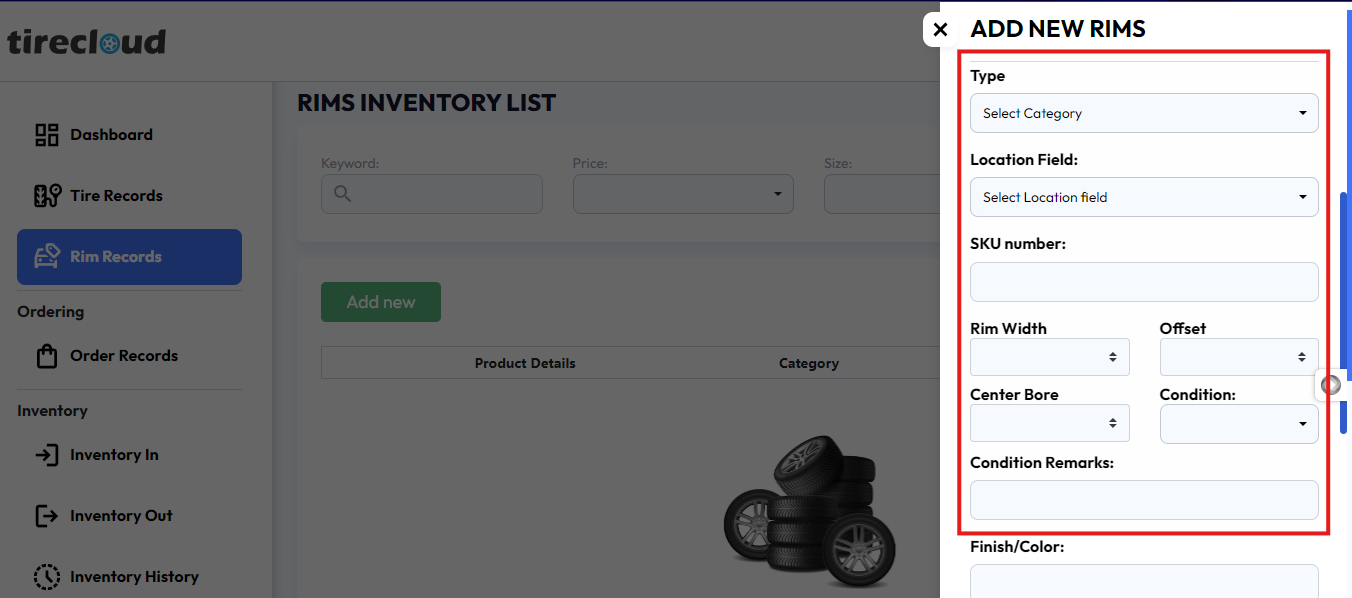
Finish/Color
Enter the color and finish of the rim (e.g., Black Matte, Polished Silver). This helps customers match rims with their vehicle style.
Load Rating
Specify the maximum load the rim can carry (e.g., 690 kg). This ensures safety and compliance with vehicle requirements.
Quantity
Input the number of rims available in stock (e.g., 12). This helps you manage inventory levels.
Cost Price
Enter how much the rim costs you (e.g., $120). This is for internal use when calculating profit margins.
Retail Price
Input the selling price to the customer (e.g., $200). This is the price that will be shown to customers.
Other Pricing Type
If applicable, include any additional pricing information (use price matrix use rim estimator ).
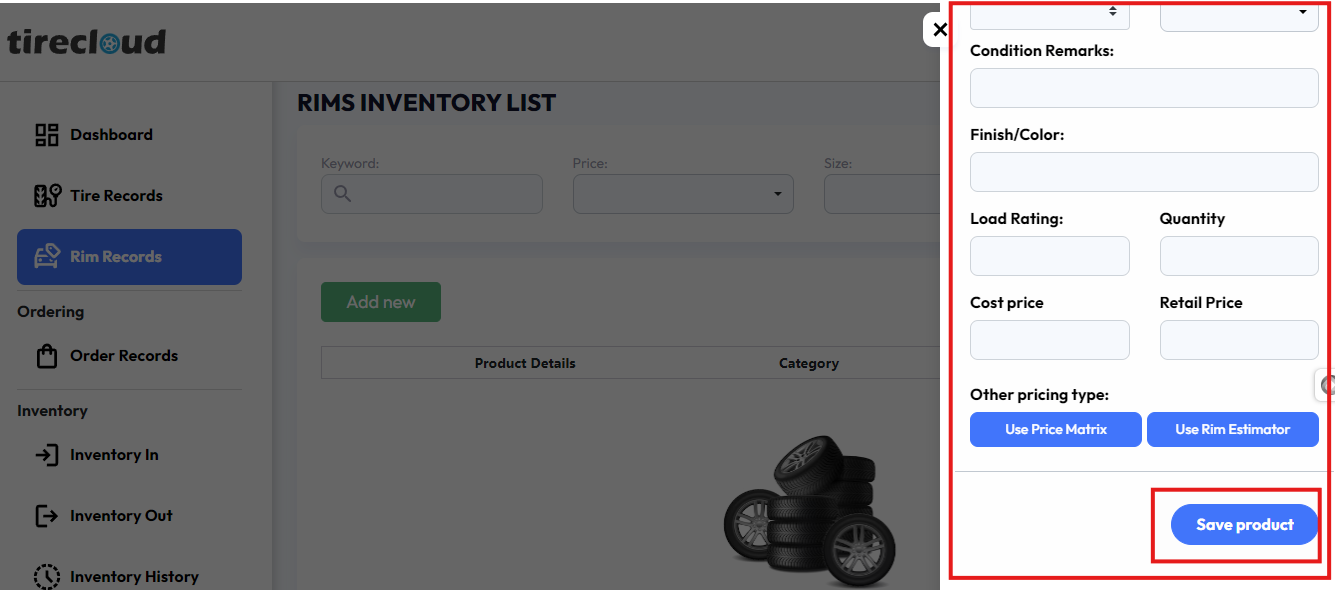
Once all fields are filled, save the information, and the rim will be added to your inventory list, which is ready for tracking and sales!
This process ensures you have all the essential details about each rim product, making inventory management smoother and more efficient.