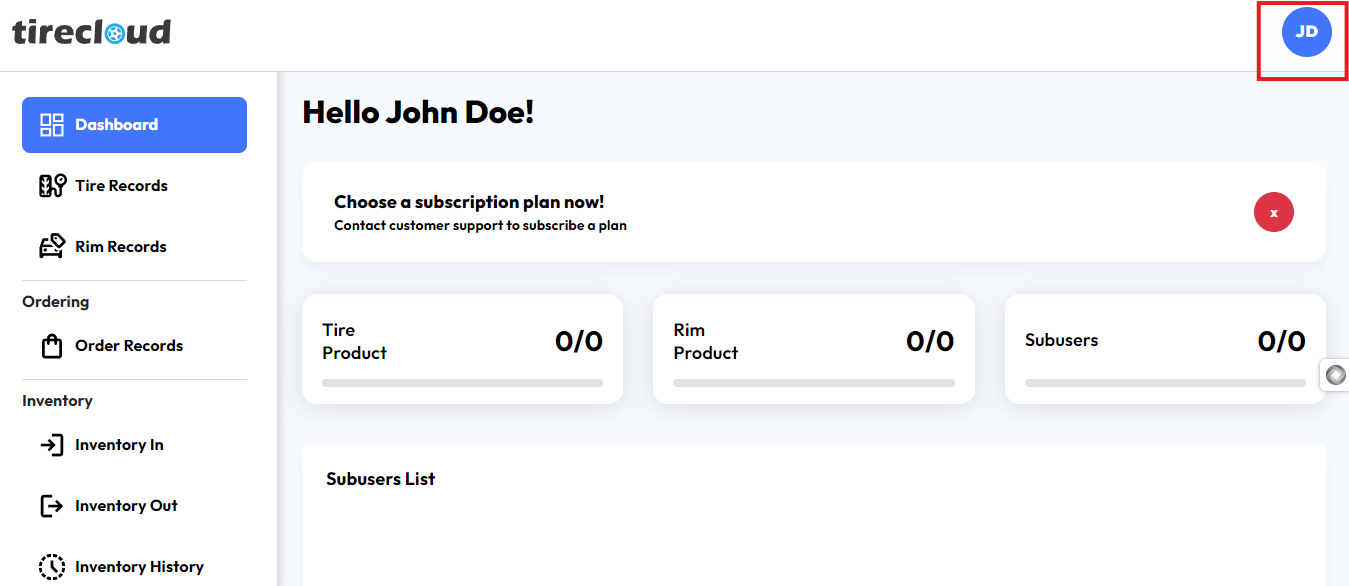
In Tire Cloud, you can easily manage your account settings through the User Menu, accessible by clicking on the profile icon (e.g., “JD”) located at the top-right corner of the interface. The following options are available:
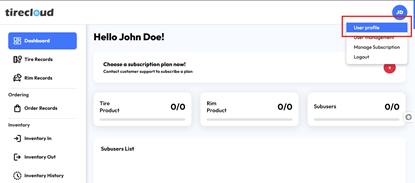
User Profile
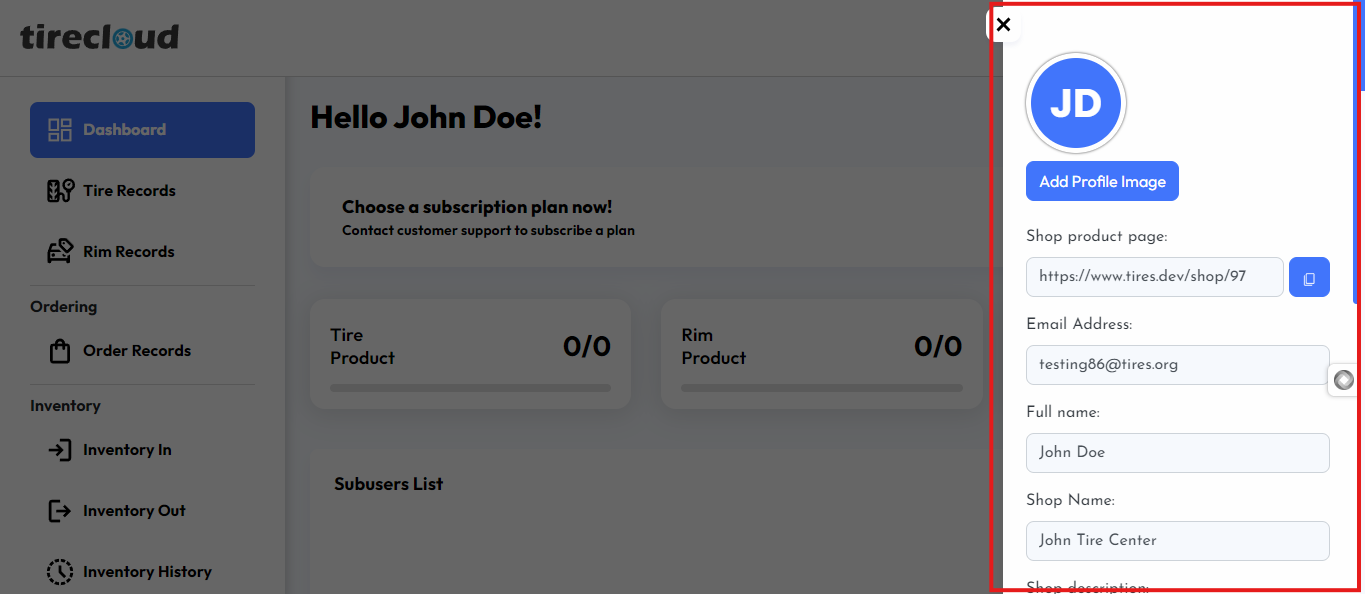
Allows you to view and edit your profile information. This includes changing your shop name, email address, contact number and uploading a profile image.
Shop Product Page: A direct link to your shop’s public-facing product page.
Email Address: The email associated with your account.
Full Name: Your registered full name.
Shop Name: The name of your shop, is displayed in your account.
How to Update Your Profile in Tire Cloud
This guide provides step-by-step instructions for updating your profile information in Tire Cloud. Your profile contains essential details, such as your full name, shop name, email address, and profile image, website contact number which are displayed throughout the platform.
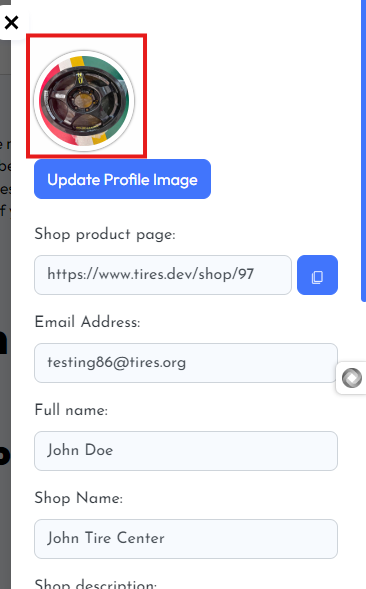
Profile Image:
To upload or update your profile picture, click the Add Profile Image button
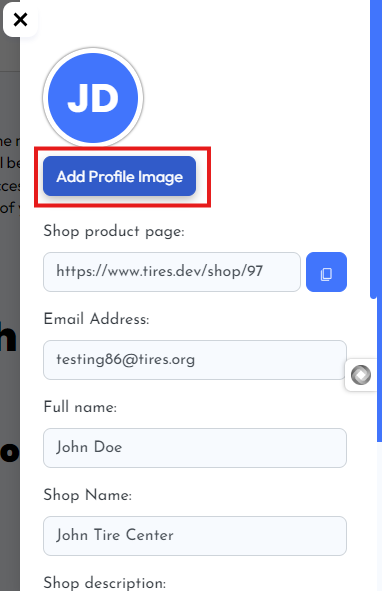
This will open a file selection window where you can browse and select a picture from your computer.
After selecting an image, it will be uploaded and displayed as your new profile picture.
Shop Product Page:
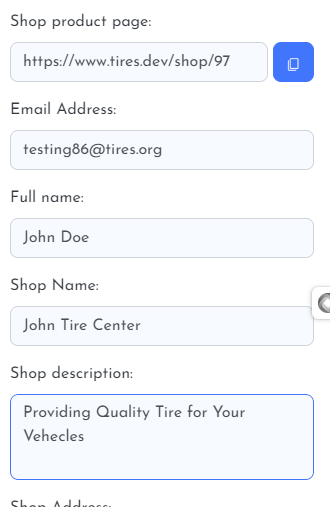
Edit Profile Information:
Shop URL: Copy but not editable.
Email: Update your email in the Email Address field.
Full Name: Change your name in the Full Name field.
Shop Name: Enter a new name in the Shop Name field.
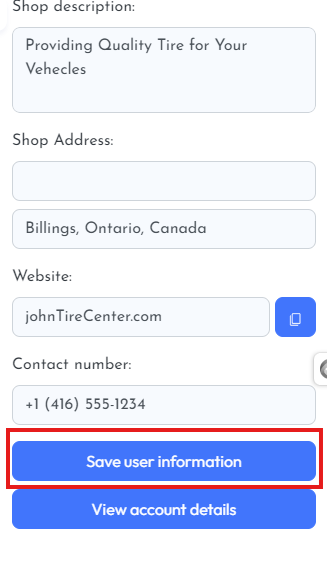
Save Changes:
Double-check your updates.
Click Save User Information at the bottom of the page.
Verify Updates:
Check the updated info on your profile or dashboard.
Log out and back in if needed.
Updating Password
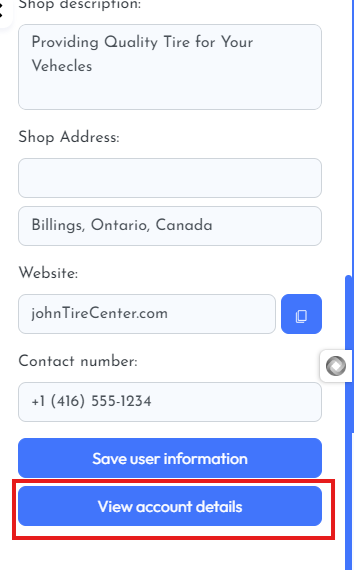
To update your password follow this step
Click View Account Details
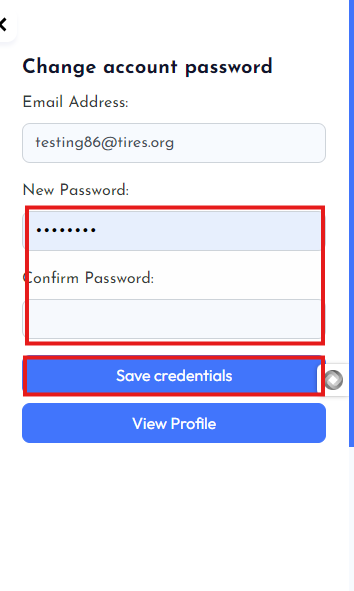
New Password: Type your desired new password.
Confirm New Password: Re-enter the new password to confirm.
Click Save Credential
Verify the Change
After saving, log out of your account.
Log back in using your new password to ensure the change was successful.