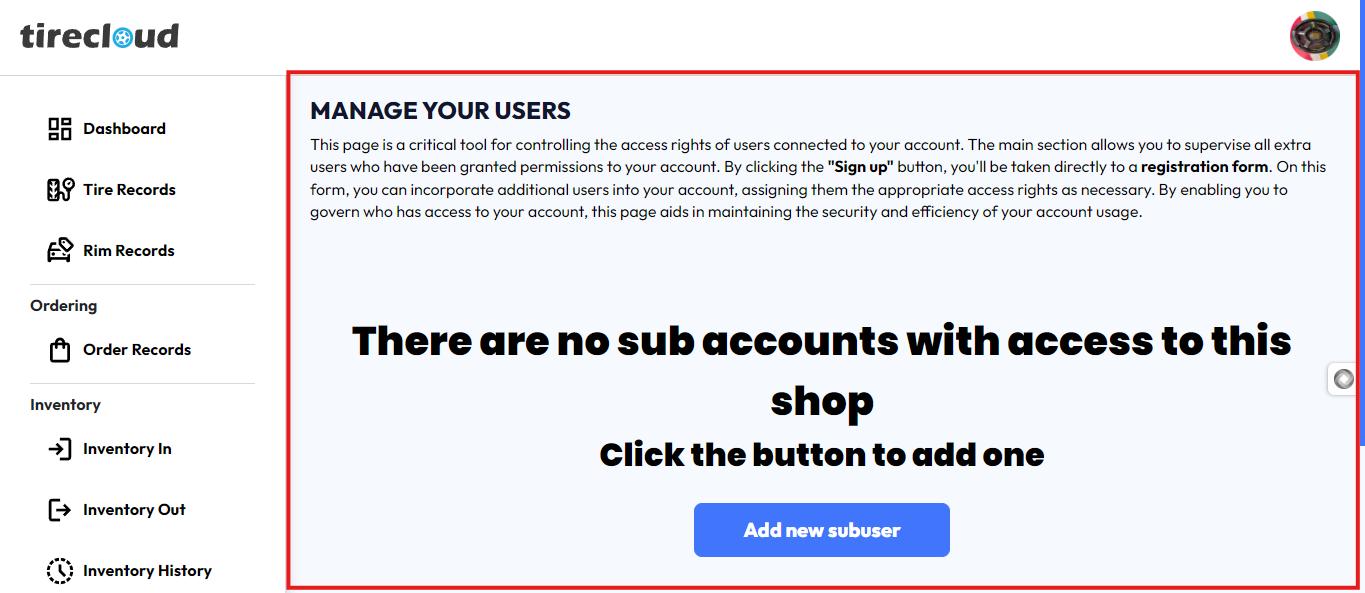
This page is designed to help you control user access to your account. In the main section, you’ll find a list of all additional users who have been granted permissions
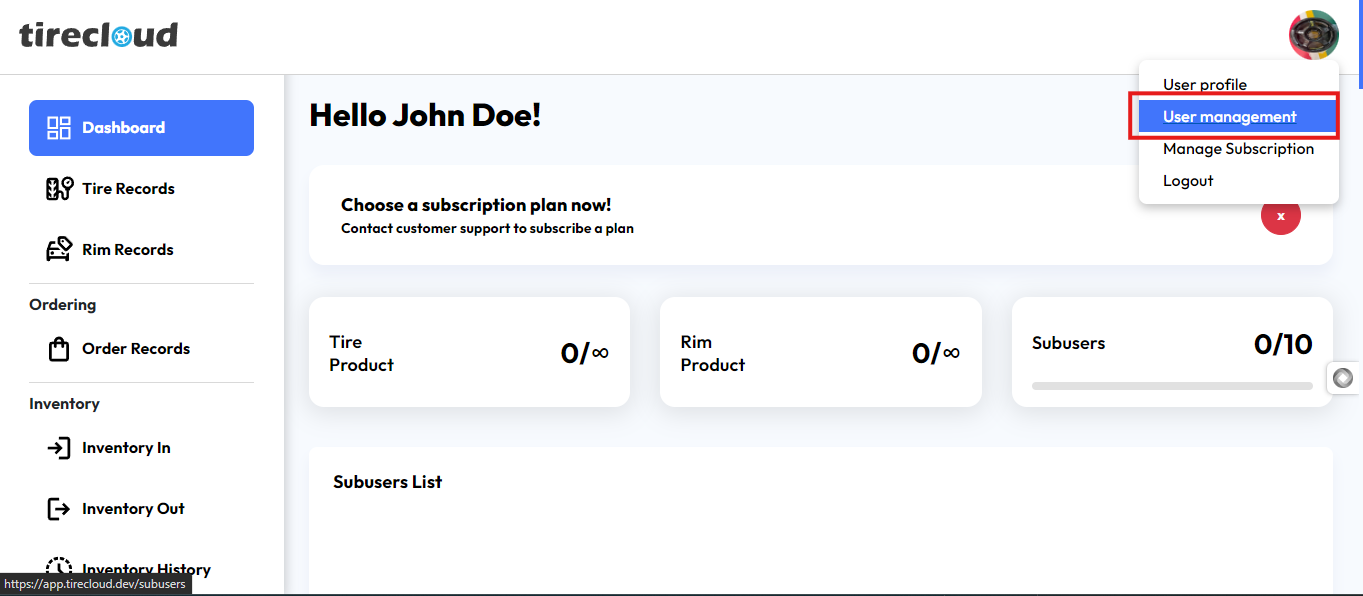
to access User Management click the user profile icon located in the top right corner of
the screen and on the dropdown menu click User Management
Adding Sub User
Before adding a sub-user please confirm your monthly subscription to activate this feature
Click "Add New Sub User"
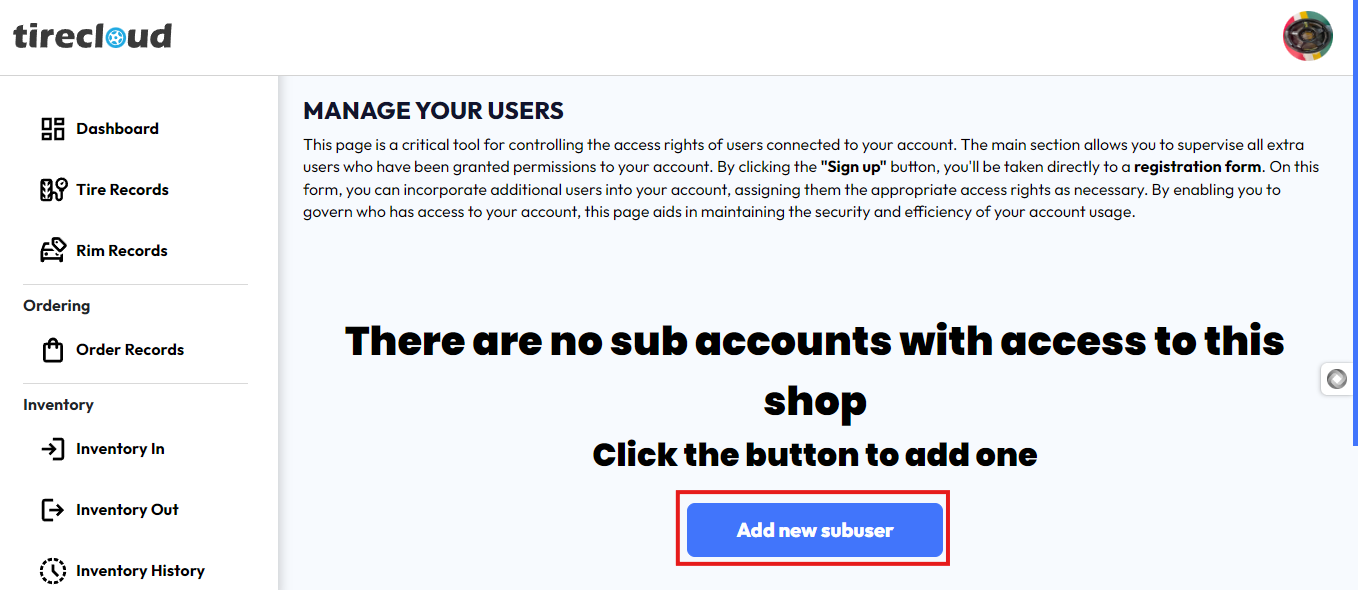
Start by clicking the "Add New Sub User" button on your dashboard.
Access the Sub-User Registration Form
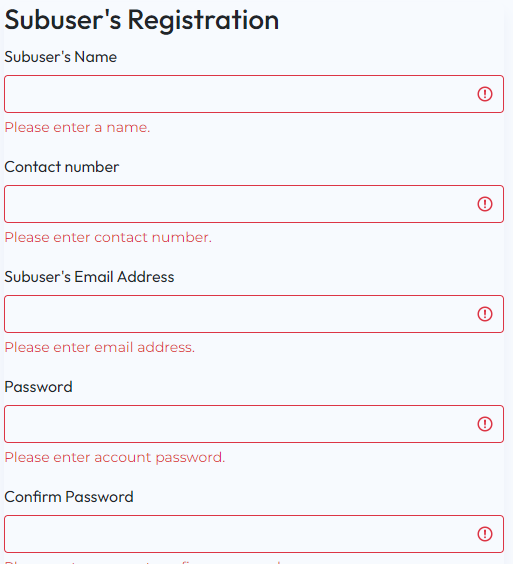
This will take you to a new page containing the registration form for adding sub-users.
Fill in the Required Information
Enter all the necessary details in the form, such as name, email, and any required access settings.
Review the Information
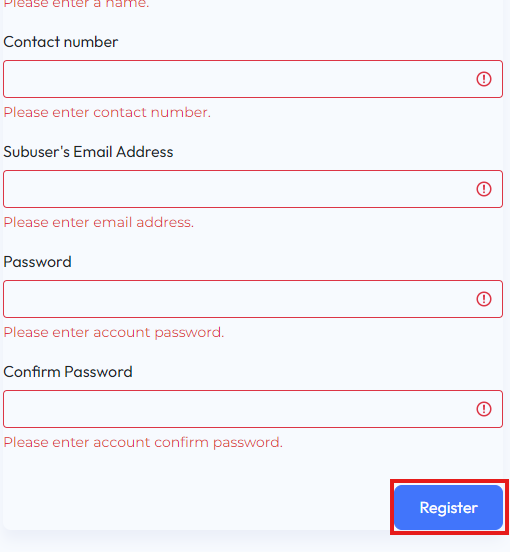
Double-check that all the required fields are completed correctly.
Click "Register"
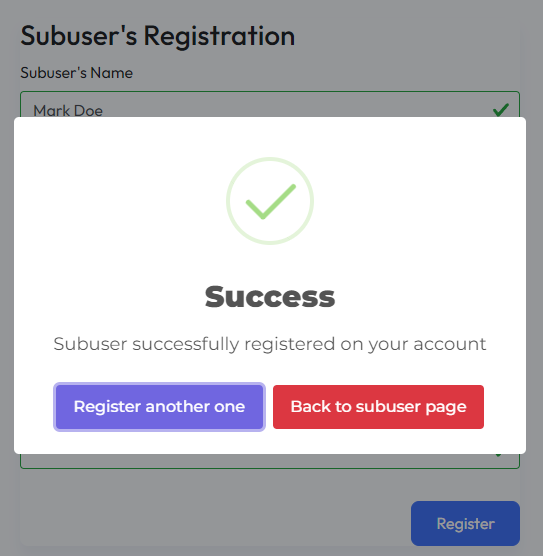
Once the registration is successful a pop-up will appear
Sub-user Verification
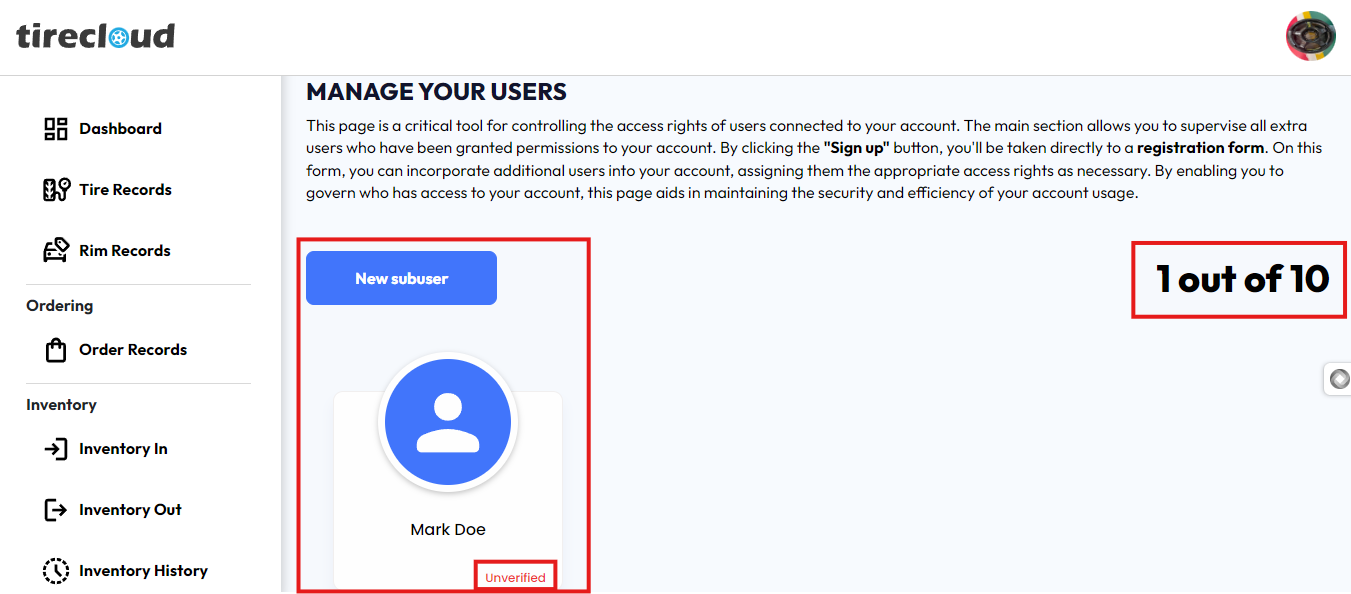
The user account can add 10 or more sub-users depending on the subscription.
To verify the sub-user, check the email that you fill in the registration form
Once verified the information and the permission access of the sub-user will be visible on your dashboard
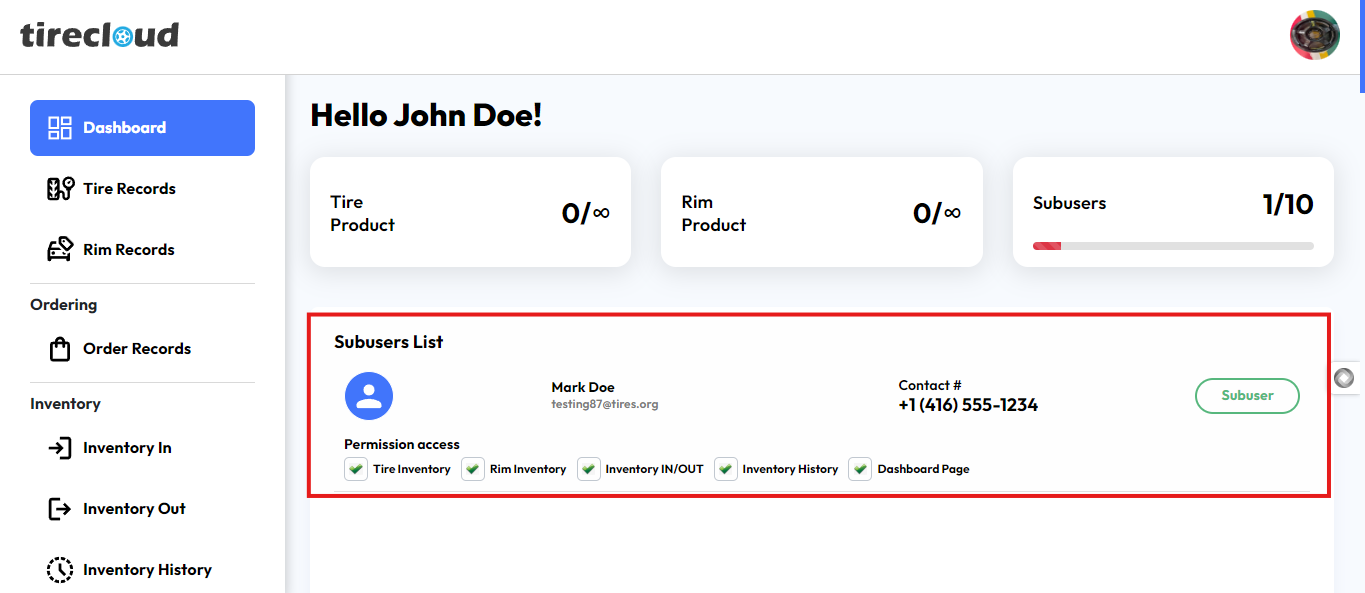
Sub-User Access Setting
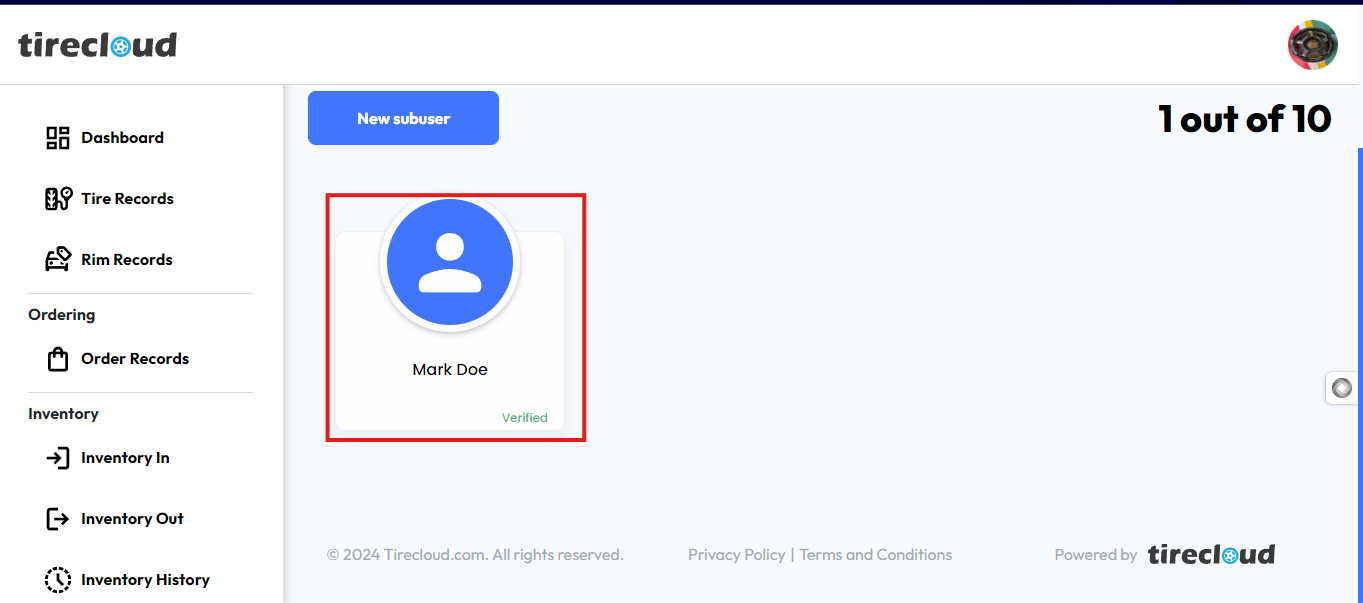
To Access Sub-User Access Setting click sub user profile icon
A sub-user setting will appear in this section you can delete or remove the sub-user the email and contact number of the sub-user can be seen in this section other than that you can also manage the access of the sub-user.
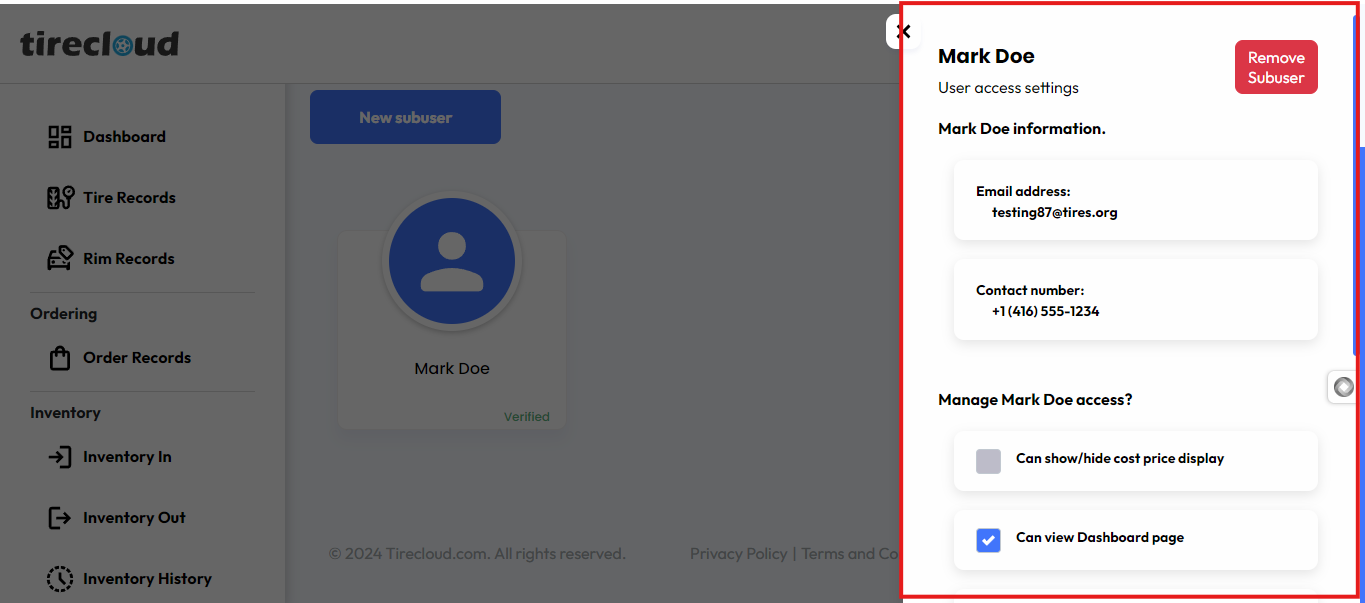
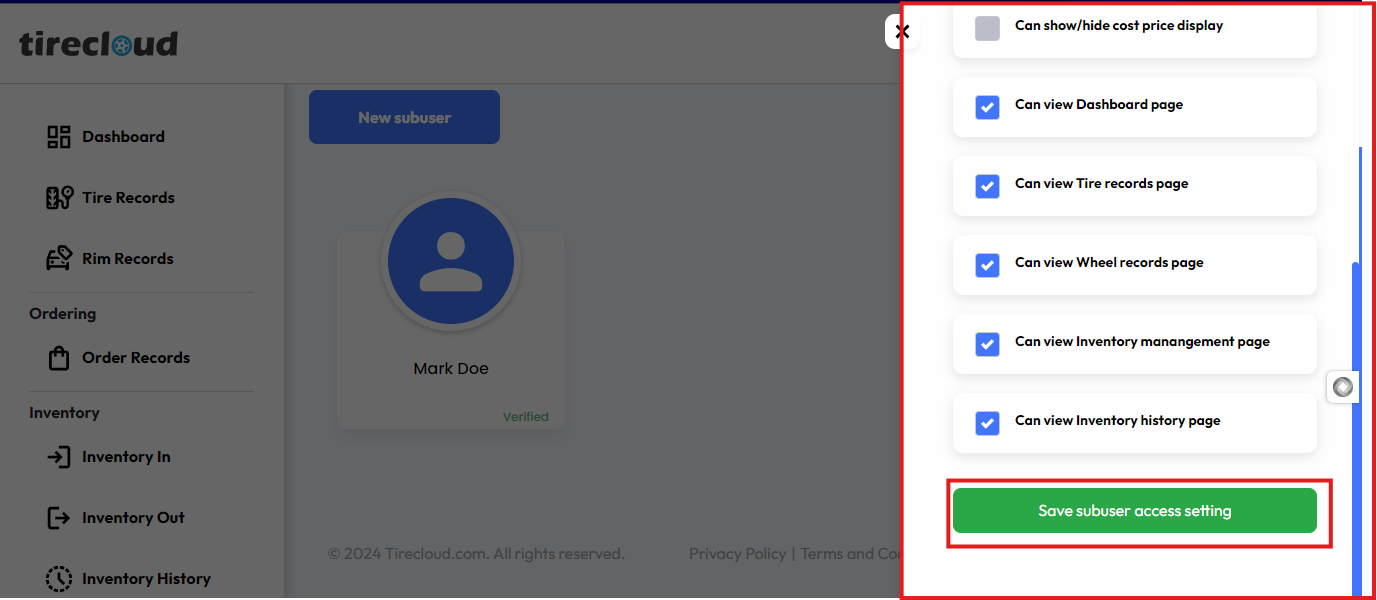
To restrict some access of the sub-user uncheck the checkbox and click
“save sub-user access setting”