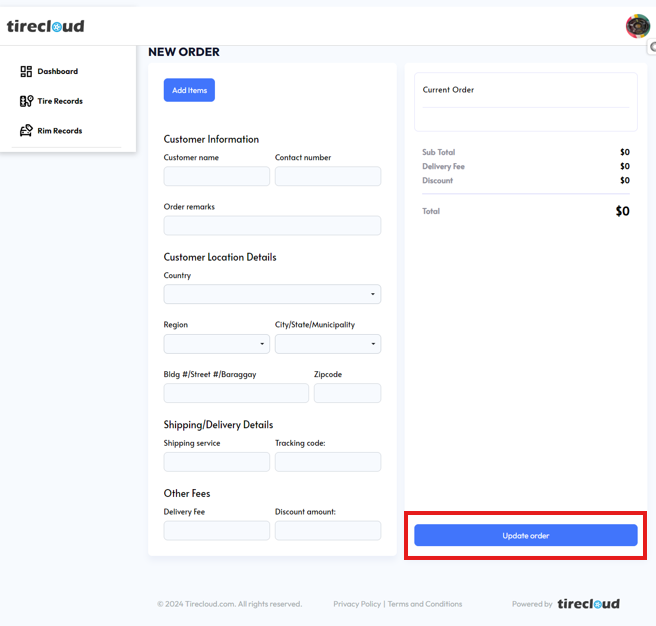
This section guides users through the process of creating and updating new customer orders using the New Order Form interface.
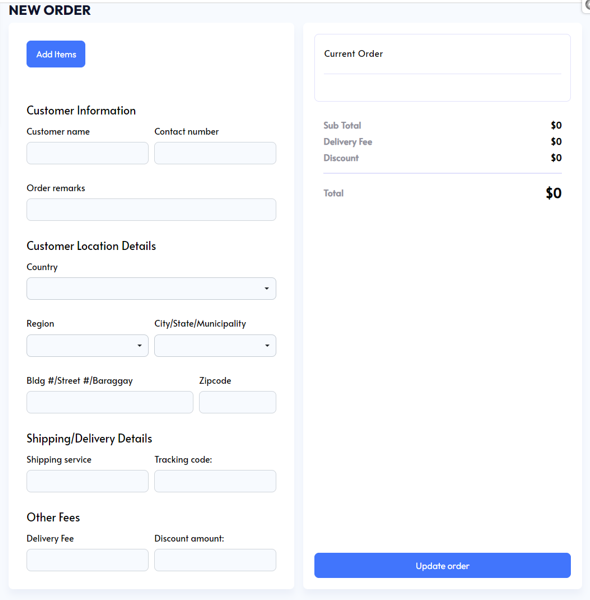
Step 1: Add Items to the Order
Click on the Add Items button located at the top left of the form, a pop-up window will appear that will allow you to select or search the products for tire and rim
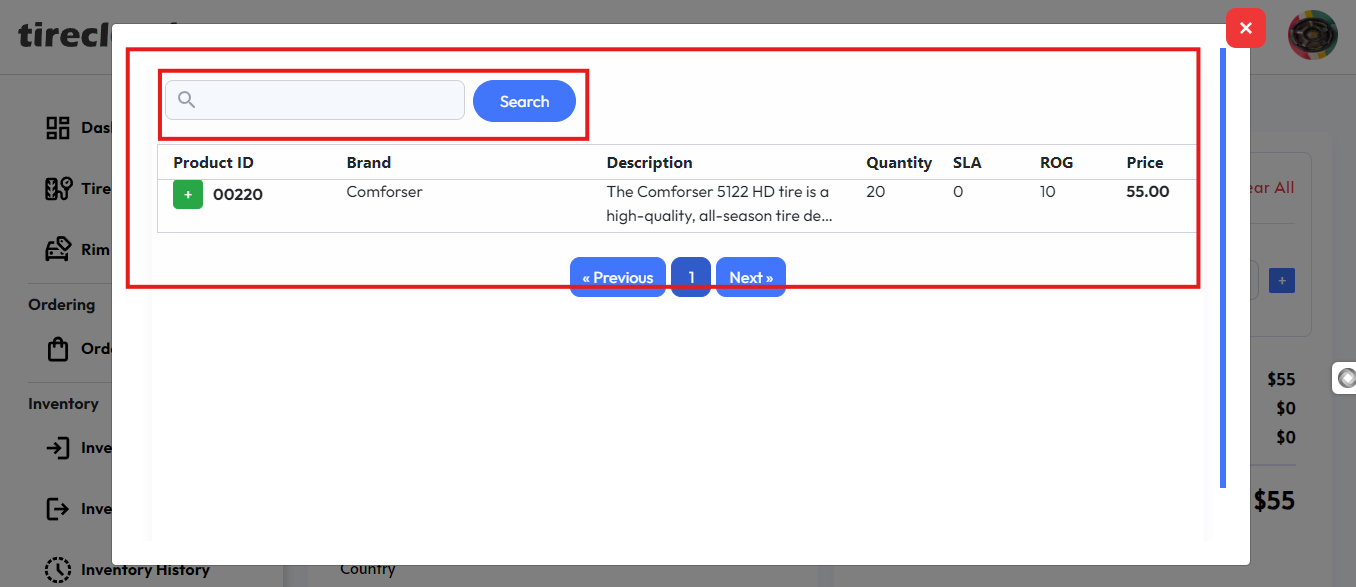
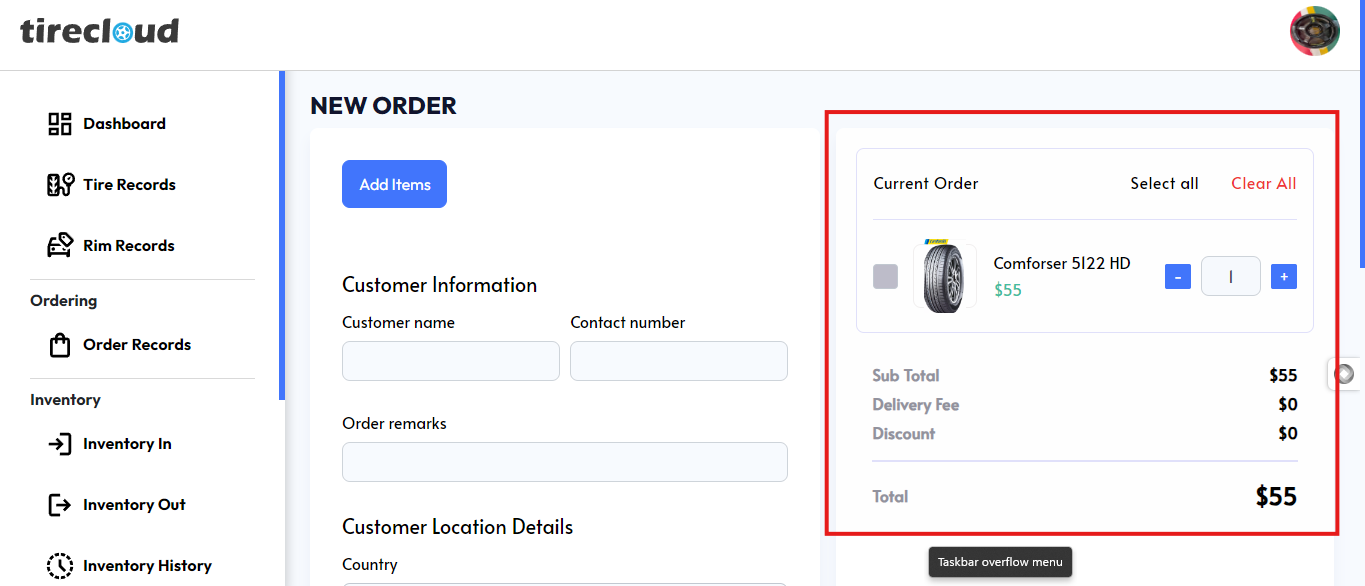
After selecting the items, they will be added to the Current Order section on the right side of the screen.
Step 2: Fill in Customer Information
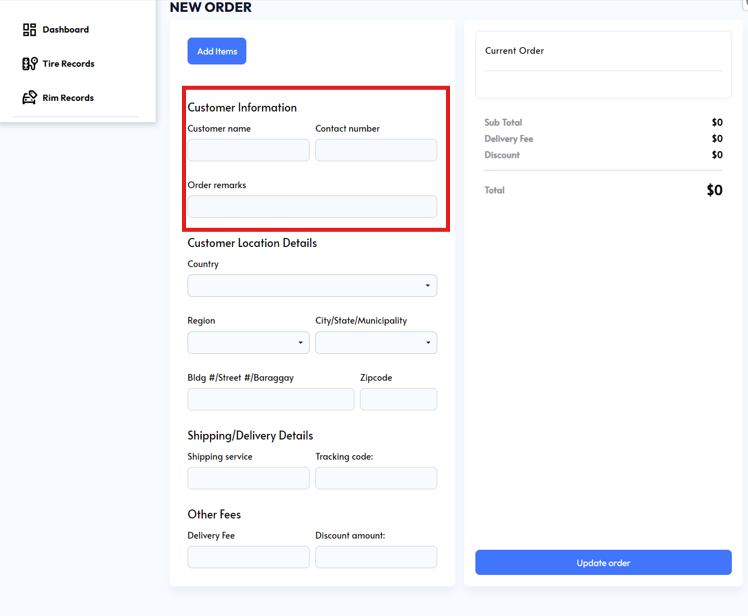
Under the Customer Information section, provide the following details:
Customer name: Enter the full name of the customer placing the order.
Contact number: Input the customer's phone number for communication regarding the order.
Order remarks: Add any special instructions or notes about the order if needed.
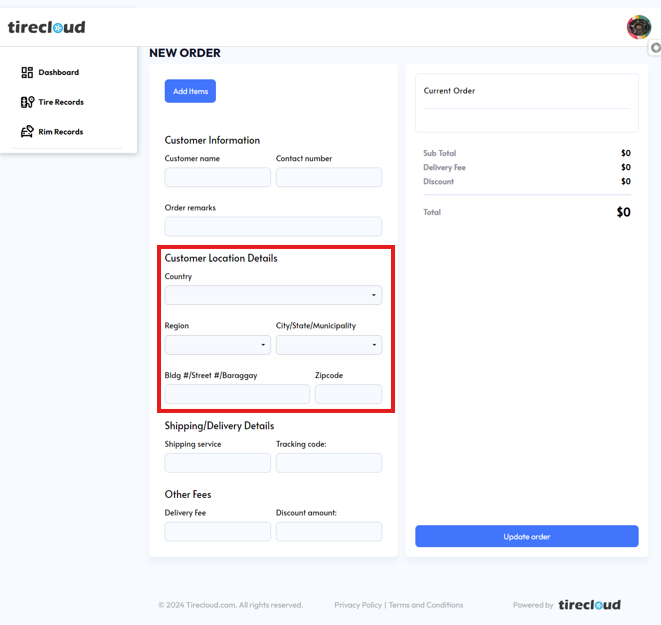
Step 3: Fill in Customer Location Details
Under Customer Location Details, fill out the shipping address:
Country: Select the country from the drop-down menu.
Region: Choose the region (state or province) where the customer is located.
City/State/Municipality: Select the city, state, or municipality from the available options.
Bldg #/Street #/Barangay: Enter the detailed address including the building or street number and barangay.
Zipcode: Input the postal code of the customer’s address.
Step 4: Enter Shipping/Delivery Details
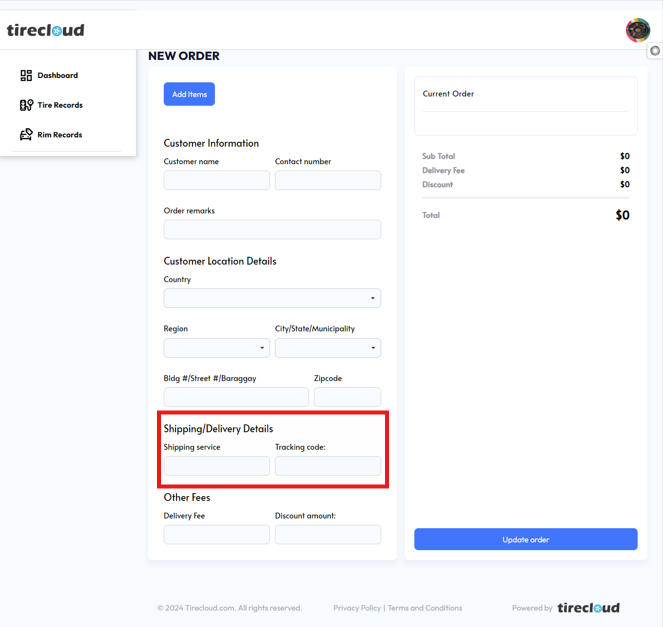
In the Shipping/Delivery Details section, provide the following:
Shipping service: Select or input the shipping service that will be used to deliver the items (e.g., FedEx, UPS, etc.).
Tracking code: If available, enter the tracking number that corresponds to the shipment.
Step 5: Specify Other Fees (Optional)
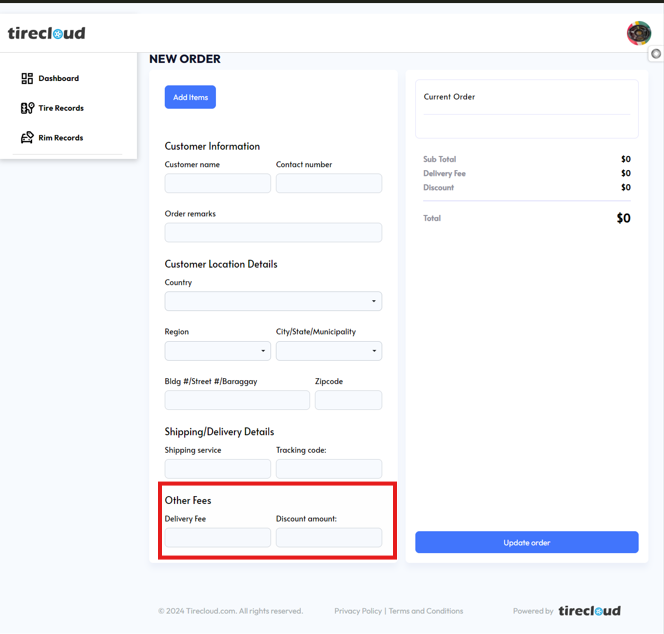
If applicable, add additional charges under the Other Fees section:
Delivery Fee: Input the amount charged for delivery.
Discount amount: If any discounts are being offered, specify the discount amount in this field.
Step 6: Review the Current Order
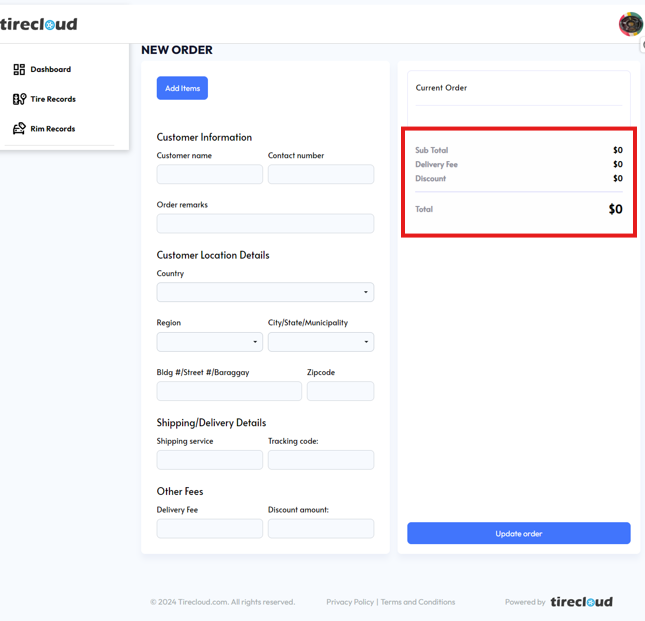
On the right side, under the Current Order section, review the following:
Sub Total: Displays the subtotal of the items added to the order.
Delivery Fee: Shows any applicable delivery fee entered.
Discount: Reflects the discount amount, if any.
Total: The final amount to be paid by the customer, which is automatically calculated.
Step 7: Update the Order
After reviewing the information, click the Update order button at the bottom right of the screen. This will save and confirm the details of the order.
This guide provides an easy-to-follow process for creating and updating orders within the system. Make sure to verify all information before saving to avoid any errors during processing.