Managing Inventory out Transaction
The Inventory Out transaction feature in Tire Cloud enables users to efficiently manage and track products that are leaving the inventory, this process ensures that the system accurately reflects the reduction in stock levels, helping businesses maintain real-time inventory updates.
Navigating to the Inventory Out section
On your navigation, click on the Inventory Out section. This will open the Inventory Out Transaction page, where you can manage your inventory.
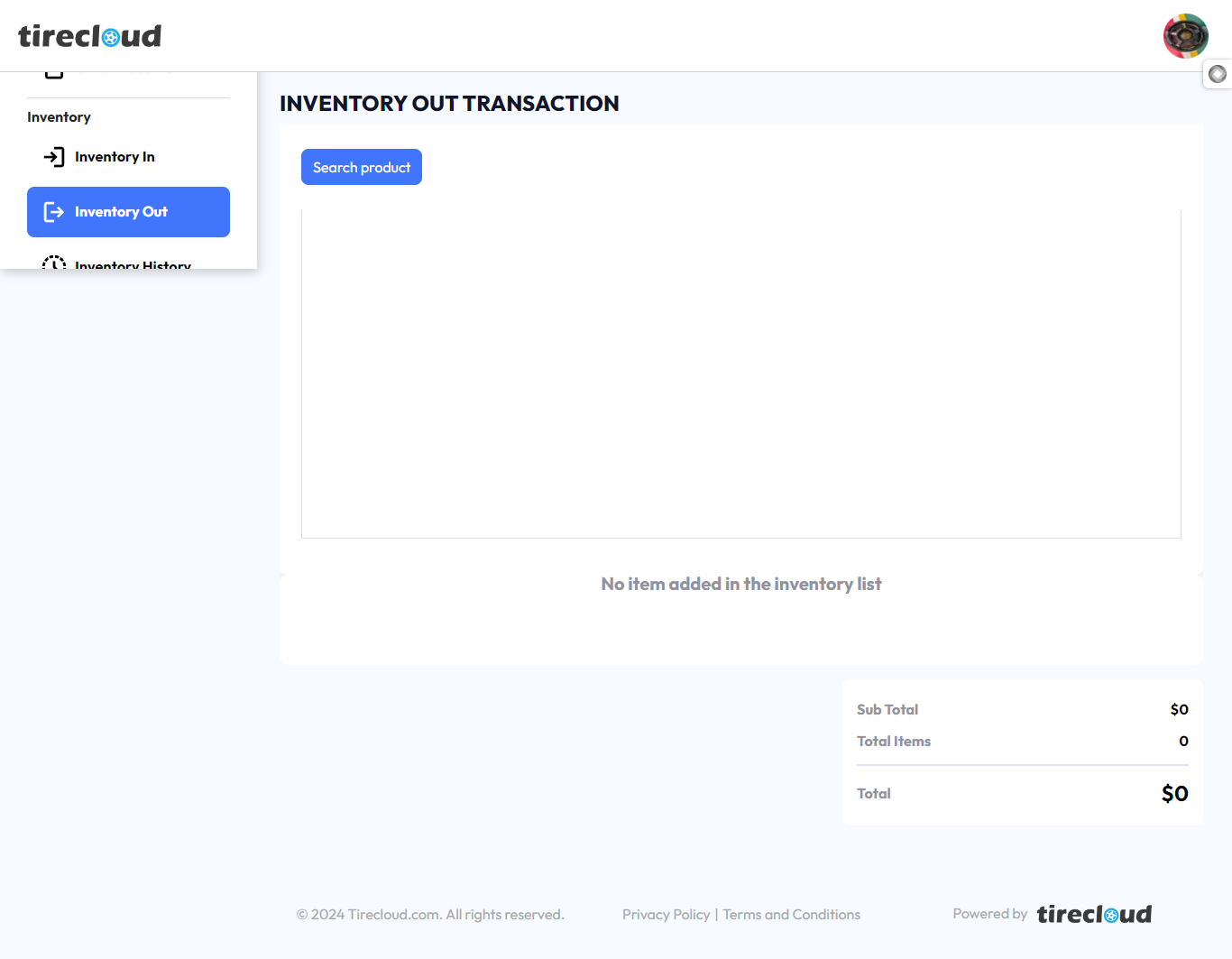
The interface will display a search product button at the top and a table for searching a product . At first, the inventory list will be empty with a note saying "No item added in the inventory list."
Searching for a Product
To search for a product, click on the Search product button 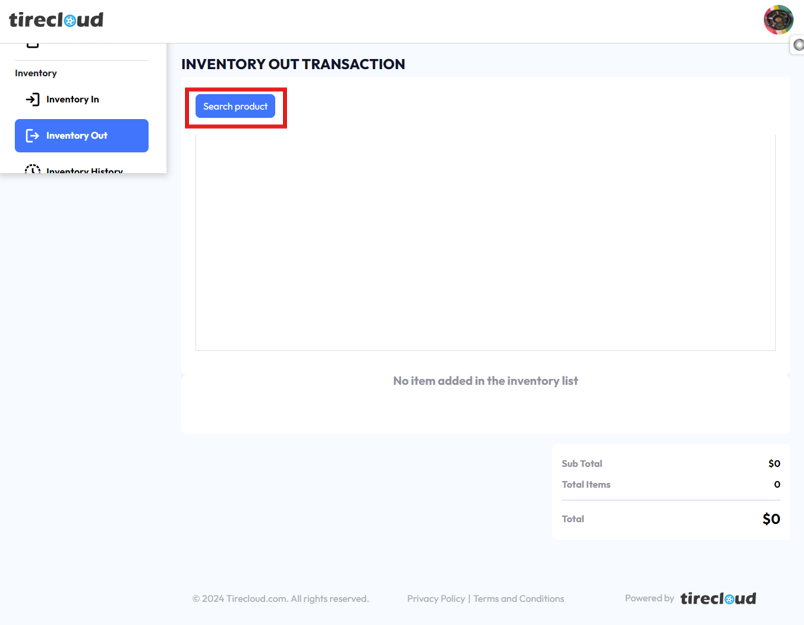
Clicking the search product button will open a pop-up window that has the ff.
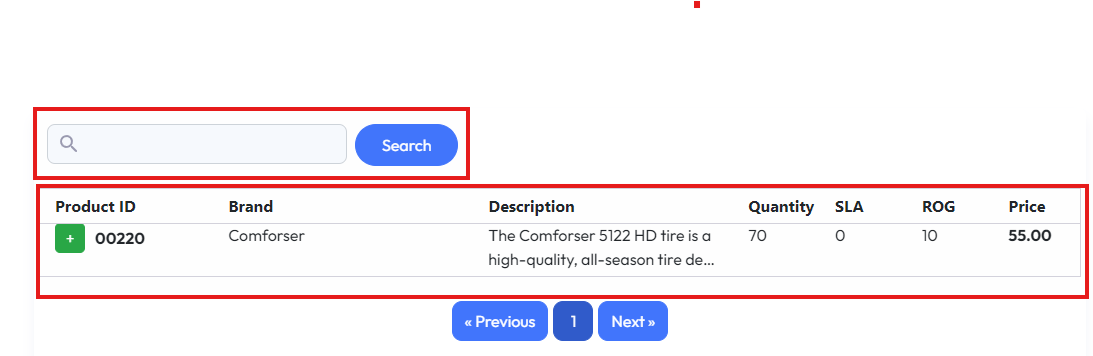
Search bar where you can search a product, and a table for the product
On the search bar you can directly type the product ID, brand, or description in the search bar.
After typing the product information, click the blue Search button.
The search results will be displayed in the table below, with details including:
Product ID: A unique identification number for the product.
Brand: The brand name of the tire or rim.
Description: A brief description of the product.
Quantity: The total number of items available in stock.
SLA: Service Level Agreement, indicating items pending or in process.
ROG: Received on Goods, indicating how many items are still awaiting processing.
Price: The listed price for each item.
Adding Items to the Inventory List
When the search results appear, you can add an item to the Inventory in Transaction list by clicking the green plus (+) button next to the Product ID.
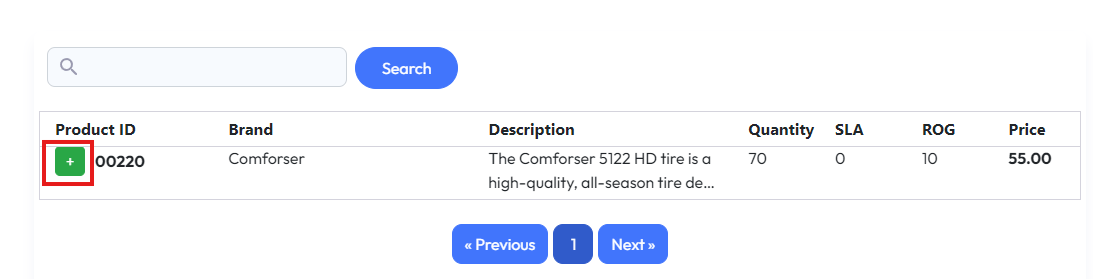
Once clicked, the item will be added to the inventory transaction list, where you can see the Subtotal, Total Items, and Total Price at the bottom right bottom corner of the screen.
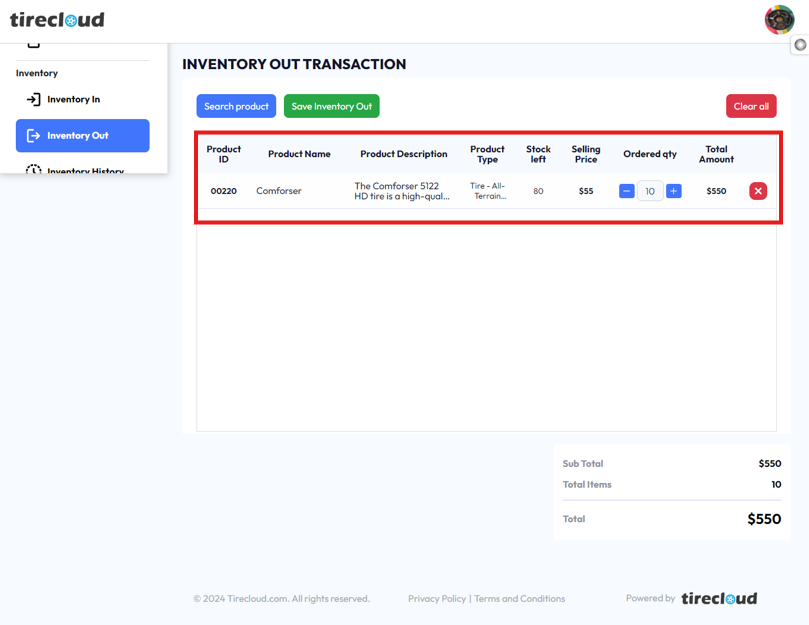
Clicking the red X button on the right side corner screen of the transaction list will delete the transaction list, with multiple transaction lists on the table clicking the clear all red button on the top right side corner of the screen will delete all the transaction list
Updating the quantity and removing stock
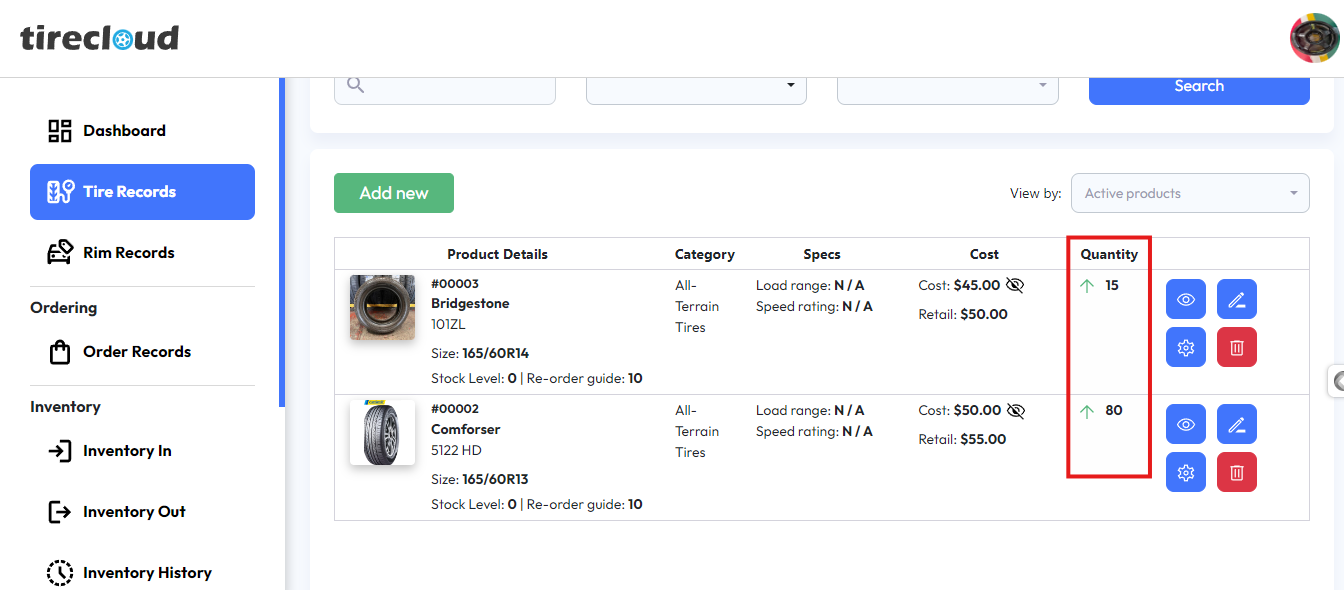
As you can see in the picture below the tire record is the quantity or the stock of the product this guide will help you update your stock or remove a stock quantity in your Inventory.
To update the quantity in the Inventory out section select a product and on the product table update the ordered quantity
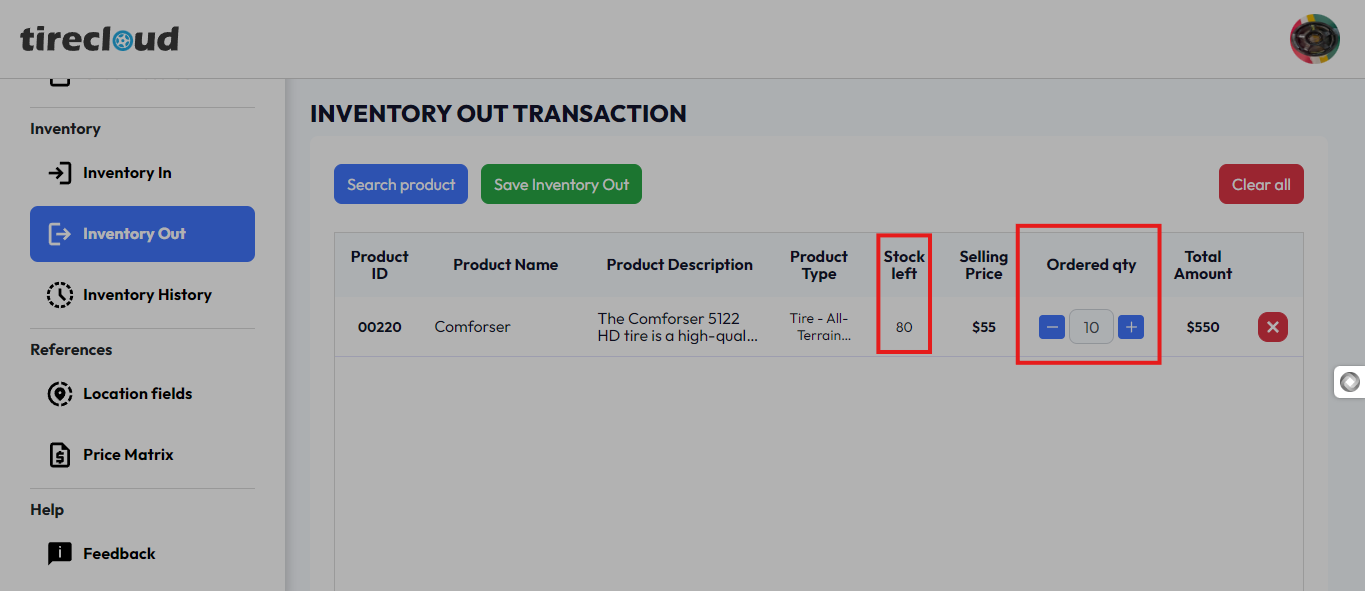
Note!!! that the value on the ordered quantity will subtract from the stock, clicking the (-) and (+) will change the value and adding or subtracting the value will also update the price of the value that you added
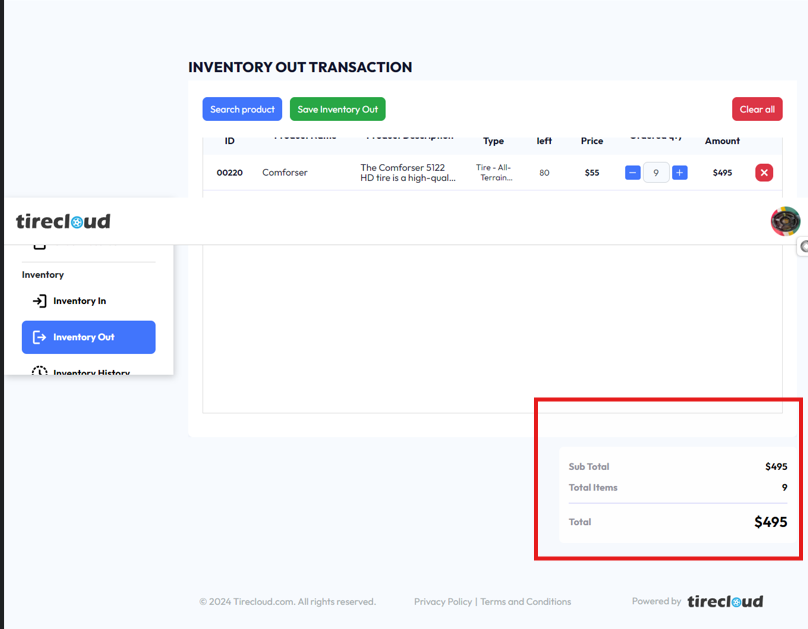
Once you finalize the quantity you want to add click the green save inventory button a pop-up window will open
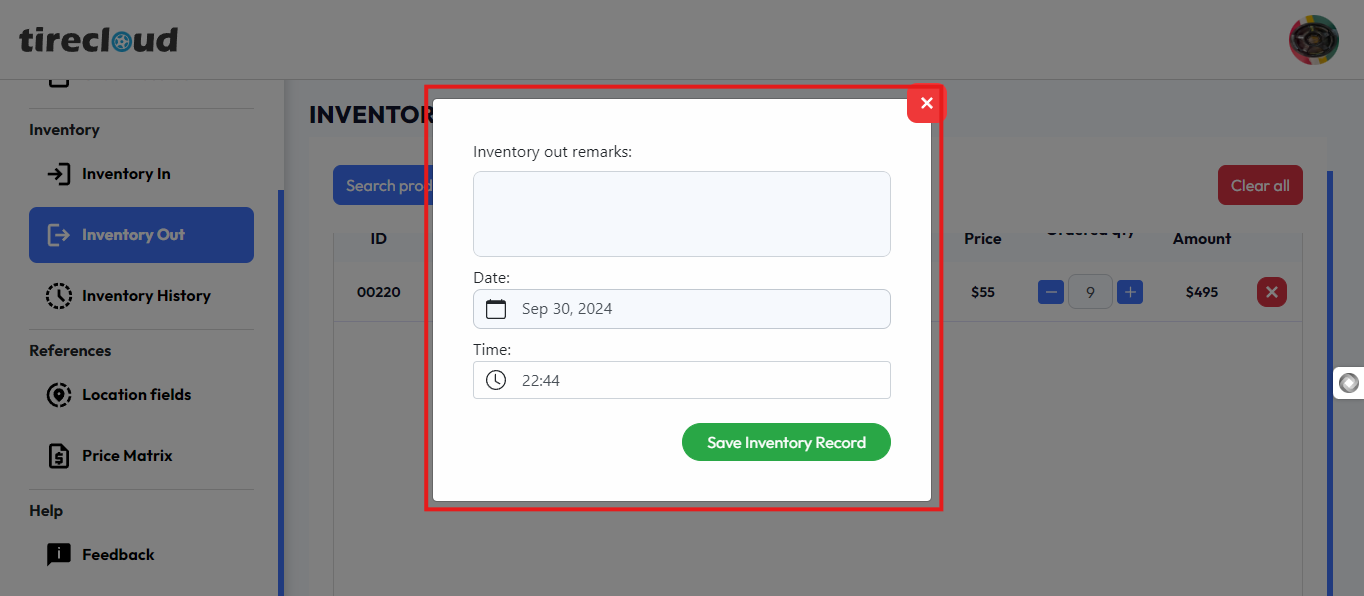
On the pop-up window, date and time will automatically add and inventory remarks where you can add a message, click the green Save Inventory Record to save your Inventory in quantity value that you want to add to your stock.