Navigating the Dashboard
The dashboard is the central hub of the Tire Cloud app, providing users with quick access to essential tools and insights for efficient tire and rim management. From inventory tracking to AI-driven analytics, the dashboard offers an intuitive layout that makes managing your operations seamless. This section will guide you through the key features, helping you navigate the system with ease and optimize your workflow. Whether you’re updating inventory or reviewing reports, the dashboard simplifies every task.
1. Navigation section
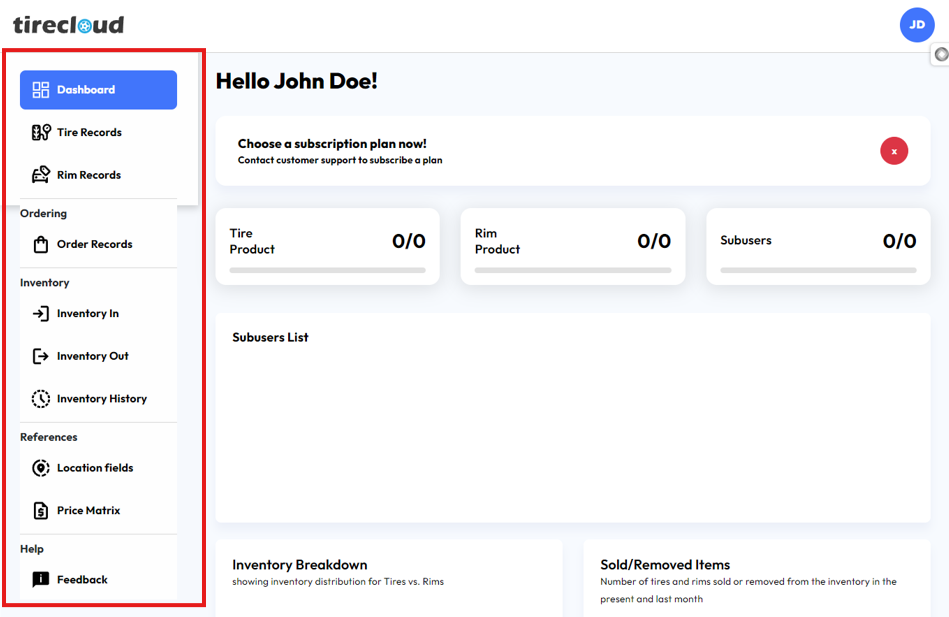
The navigation bar is the primary tool for moving between different sections of the Tire Cloud dashboard. Located on the left-hand side of the screen it provides easy access to all major features. Each icon with the label in the navigation bar represents a key area of the app, simply click on these to move between sections. The navigation bar remains visible at all times, allowing for quick, efficient transitions without needing to leave the current view. It also includes dropdown menus for expanded options within each section, making it easy to dive deeper into specific features with minimal effort.
2. Content Pane
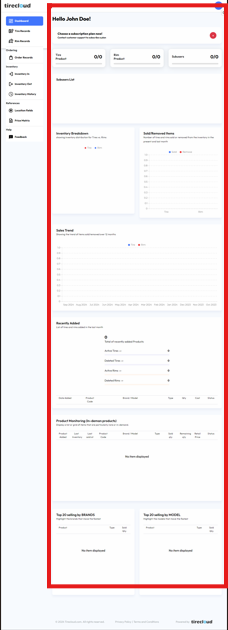
The Content Pane is the dynamic area of the Tire Cloud dashboard where detailed information and tools related to your selected navigation option are displayed. When a user selects a feature from the navigation bar, such as Inventory, the Content Pane updates to show relevant data, forms, or visualizations. This section is designed to be interactive, allowing users to view, edit, and manage tire records, generate reports, or perform other key actions. The layout is intuitive, with tables, charts, and buttons organized to help users efficiently complete tasks. The Content Pane adapts based on the chosen section, ensuring the most important information is always front and center.
3. User Menu Icon
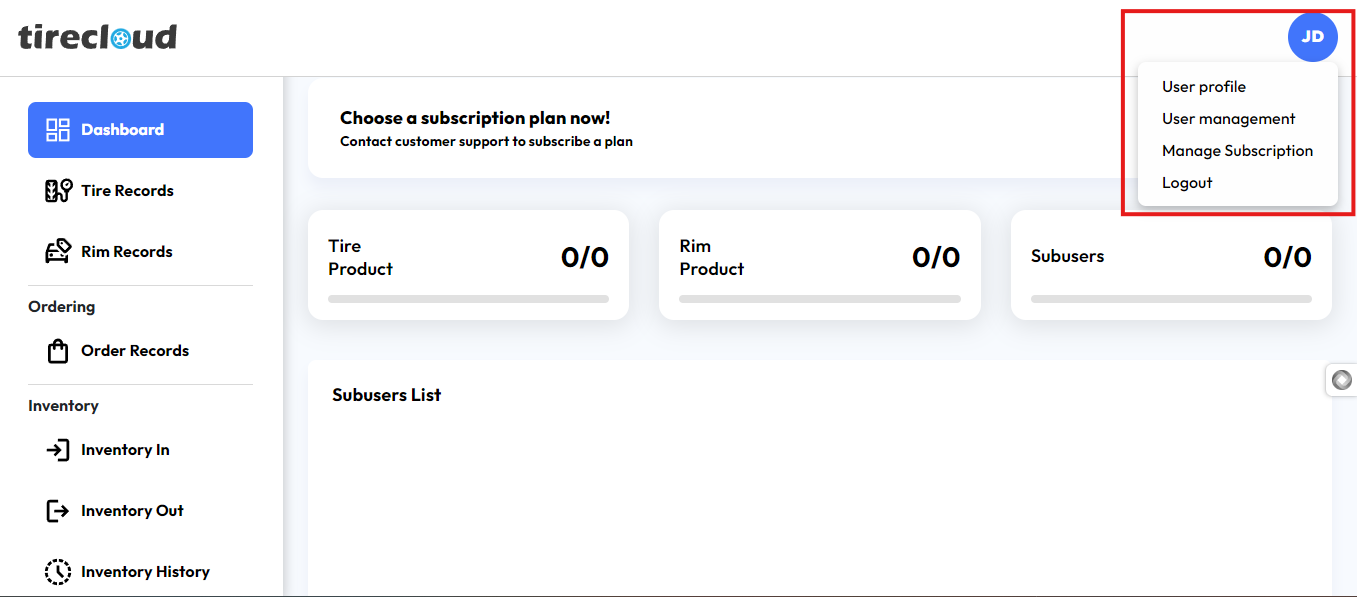
When clicked, the User Menu Icon expands into a dropdown menu, providing users with quick access to various options, such as User Profile, User Management, Manage Subscription, Logout
4. Account Information Panel
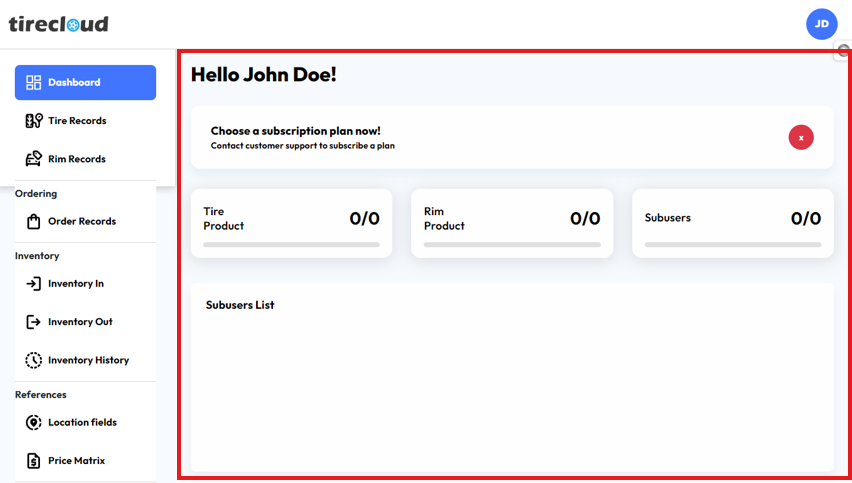
In this section of the content pane, the user name, the subscription plan the quantity of the tire product, rim product sub-users, and sub-users list a detailed list of information about the sub-users
5 Inventory Breakdown Sold/Removed item
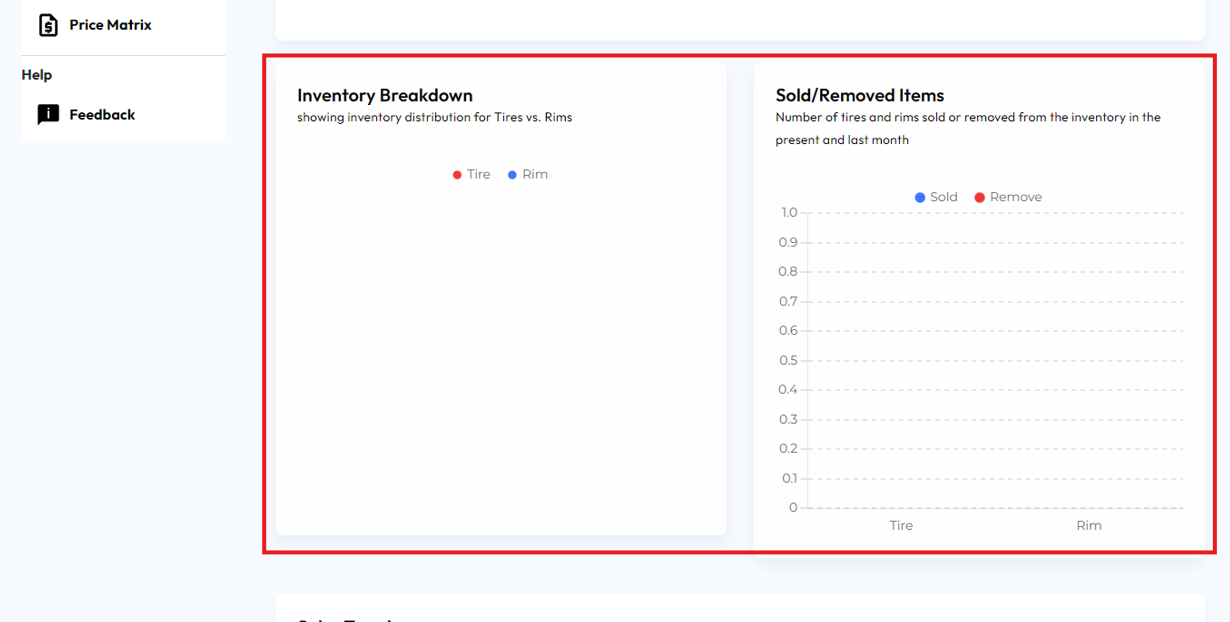 This section shows inventory for tires and rims it also shows the number of tires and rims sold or removed from the inventory in the present and last month
6. Sales Trend
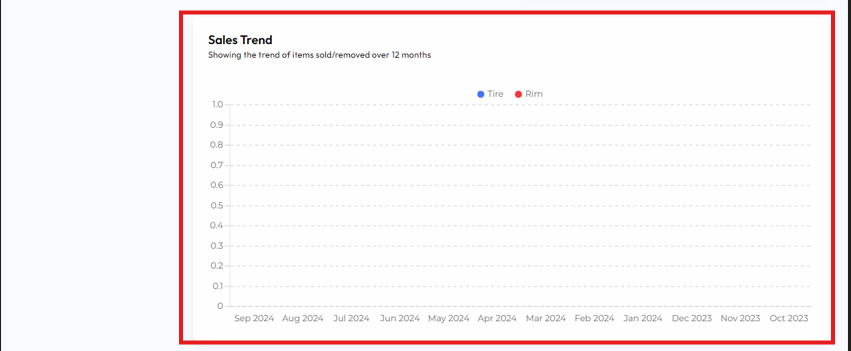
This section shows the details of the Sales Trend of items sold/removed over 12 months.
7. Recently Added
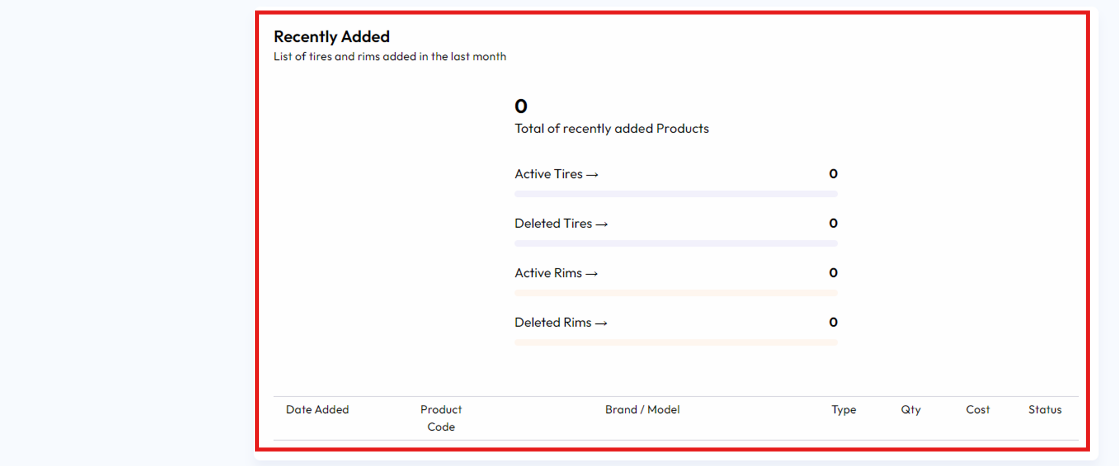
This section of the content pane of the dashboard shows the list of tires and rims added in the last month
8. Product Monitoring
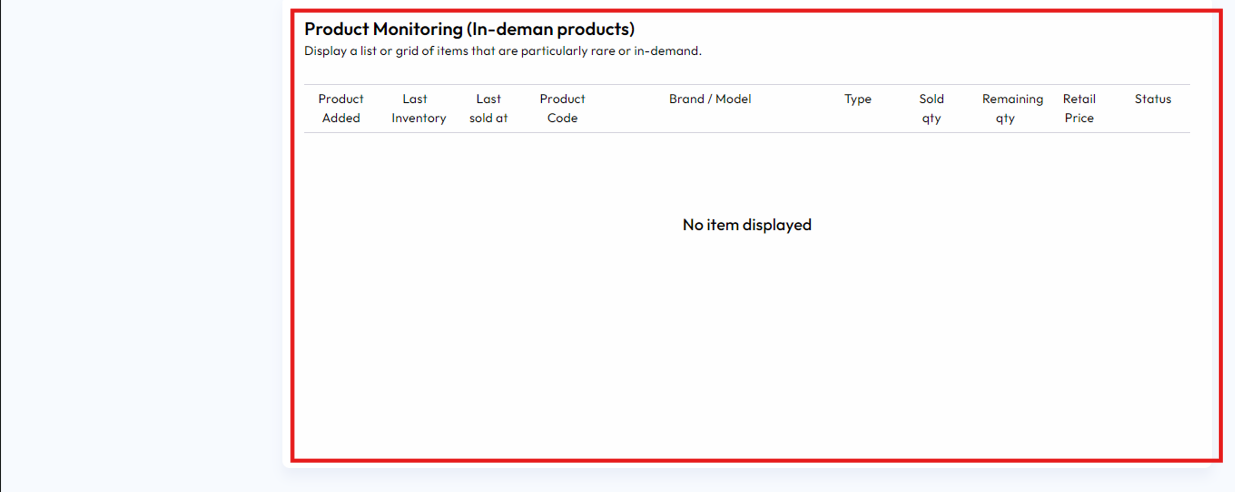
Product Monitoring displays a list or grid of particularly rare or in-demand items.
9. Sales Monitoring
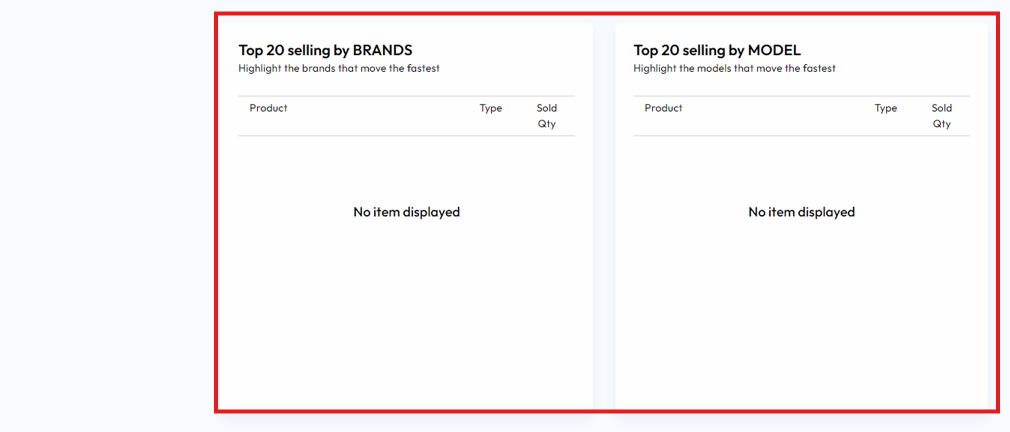
This section highlights the brands and models that move the fastest